
How to Safely Shut Down Vuze Without Losing Active Downloads
How to safely shut down Vuze depends on what its tasks are doing. Pause or stop transfers deliberately, check that disk activity has settled, close the client through its normal command, and give it time to finish. A normal exit helps preserve the task list and resume data; it cannot guarantee that an unfinished file is complete or repair a failing drive.
Independent guidance for a legacy Vuze installation. Menu labels vary by release and operating system; use only content you are authorized to download and share.
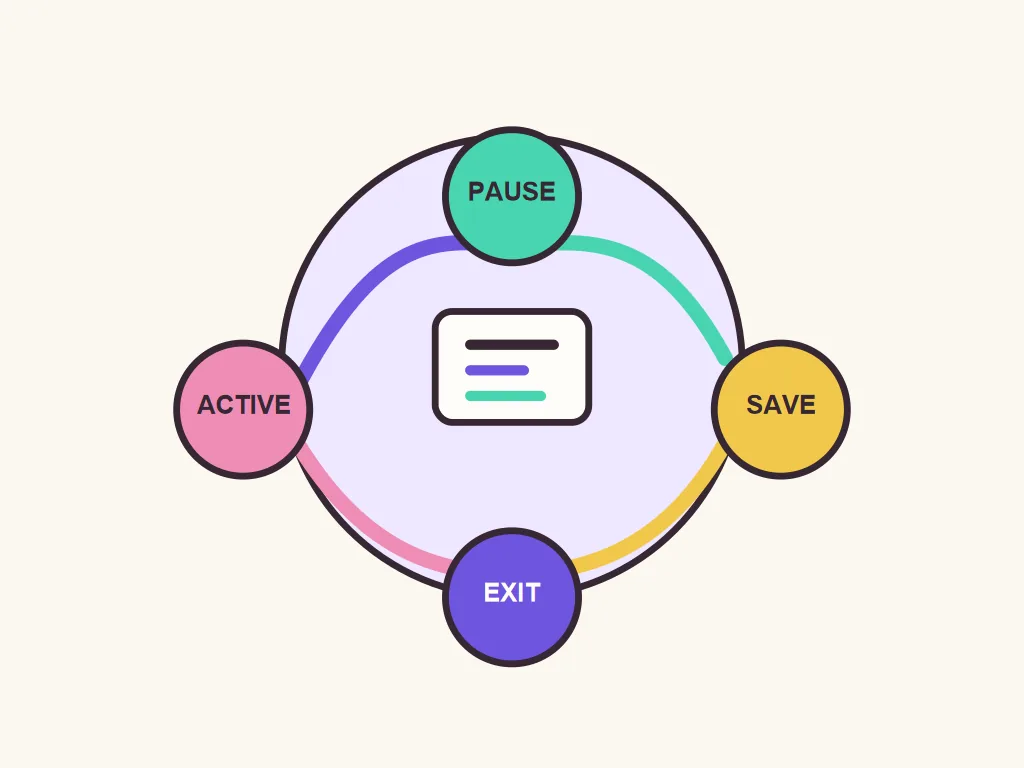
- First action
- Pause or stop tasks Choose based on whether work should resume
- Before closing
- Check disk and queue state Avoid interrupting active writes
- Normal exit
- Use Vuze's own close command Wait for the window and process to finish
- If frozen
- Recover once, then verify Repeated force quits increase uncertainty
How to safely shut down Vuze: the short sequence
For an ordinary desktop session, how to safely shut down Vuze is straightforward: pause transfers, confirm the client is not writing, then use its normal exit command. Leave the machine powered on while it closes.
Check each task state instead of relying on the overall speed number. Active writes, queued work, paused tasks and completed-file checks are different. Pause tasks you want to resume. If you intend to abandon one, use Vuze's stop or remove controls and read any prompt about downloaded data before confirming.
Wait until the interface reflects the paused state and disk activity is quiet. Vuze may still be flushing pieces or updating resume information. Do not close the laptop, pull external storage, end the process or cut power while that work may be continuing.
Choose Vuze's own Exit or Quit command from its application, tray or window menu. A disappearing window may only mean it was minimized or hidden. Wait briefly and confirm the client has stopped before powering down the computer.
- Review task statesSeparate active writes, queued work, paused tasks and completed-file checks.
- Pause deliberatelyKeep tasks that should resume; remove a task only after reading the data-retention prompt.
- Wait for disk activityLet Vuze finish piece writes, checks and state updates.
- Exit from VuzeUse its normal Quit or Exit command and allow the process to close.
- Power down lastOnce Vuze is closed, safely eject external storage before disconnecting it.
Pause, stop or remove: choose the right task action
When deciding how to safely shut down Vuze, choose the least disruptive task action that matches what you intend to happen next.
Pause is usually the reversible choice when you plan to return. It stops ordinary transfer while keeping the task entry. Wait for the displayed state and any disk work to settle; the first click is not an instant safe-to-unplug signal.
Stop ends current activity but may keep the entry and files. Remove can delete only the Vuze entry or also erase downloaded data. Read the confirmation and check the destination before choosing a deletion option.
Queued tasks are already waiting; completed tasks may still be seeding or checking. Decide whether that activity should stop before quitting. For missing magnet metadata, use the Vuze magnet-link troubleshooting guide instead of repeating the same controls.
| Action | What it is for | Before you confirm |
|---|---|---|
| Pause | Keep a task available for later | Wait for the displayed state and disk activity to settle |
| Stop | End current activity while retaining the task entry | Check whether the task can be resumed as intended |
| Remove task | Clear an entry from the client | Read whether the prompt also deletes downloaded data |
| Force quit | Last resort when the process is unresponsive | Use only after waiting and checking whether storage is still busy |
Check storage and resume state before you exit
Knowing how to safely shut down Vuze also means checking the destination before closing, especially when files are on removable or network drives.
Confirm the destination drive is connected and still uses the expected mount point. If Vuze writes to external storage, wait for disk activity to settle before ejecting it. A visible zero rate does not prove that checks or writes have finished.
Treat a folder change as a separate operation: note both paths, stop the task, and use Vuze's location or recheck workflow. The download-folder guide covers missing-file checks. A shutdown does not move data safely for you.
Note tasks that were incomplete, paused, checking or waiting for metadata. This gives you a baseline after restart. For a major system change, use normal backup tools and avoid copying unfamiliar client folders while Vuze is open.
- Keep the destination drive attached until Vuze is fully closed.
- Do not interrupt a recheck or file write just because transfer speed is zero.
- Record unusual task states before closing so you can compare after restart.
- Treat moving a download folder as a separate, verified operation.
Close Vuze on Windows, macOS or Linux
The same rule for how to safely shut down Vuze applies across platforms, although closing a window may not quit the application.
Across platforms, use Vuze's own Exit or Quit command and verify that the client stops before disconnecting storage. The close button may minimize or hide an application instead of quitting it. If the operating system reports that Vuze is unresponsive, wait and check for disk activity before choosing Force Quit.
| Platform | Normal close | Common mistake |
|---|---|---|
| Windows | Use Exit from Vuze or its tray menu | Assuming the X button quit a minimized-to-tray client |
| macOS | Choose Quit from the application menu | Treating a closed window as a stopped application |
| Linux | Use the app or tray Quit command | Assuming every desktop environment handles close identically |
What to do if Vuze will not close
If you are learning how to safely shut down Vuze, treat a frozen client as a recovery problem. Repeated force quits do not make a hung disk safer.
If the interface is busy or checking files, wait and avoid opening a second copy. If it responds again, pause tasks, let the state settle, then issue one normal Exit command. Do not repeat the command while the first request is processing.
Use the operating system's force-quit control only as a last resort when the client remains unresponsive and storage is not visibly active. This may lose recent state or require a recheck. Do not unplug the drive or cut power at the same time. If the device reports errors or disconnects, protect the data instead of repeatedly restarting Vuze.
After a forced close, reopen only when the system and drive are stable. Let any offered file check finish; do not remove a task just because it is checking. Compare its destination with your notes. For a slow or paused transfer, see the Vuze speed guide.
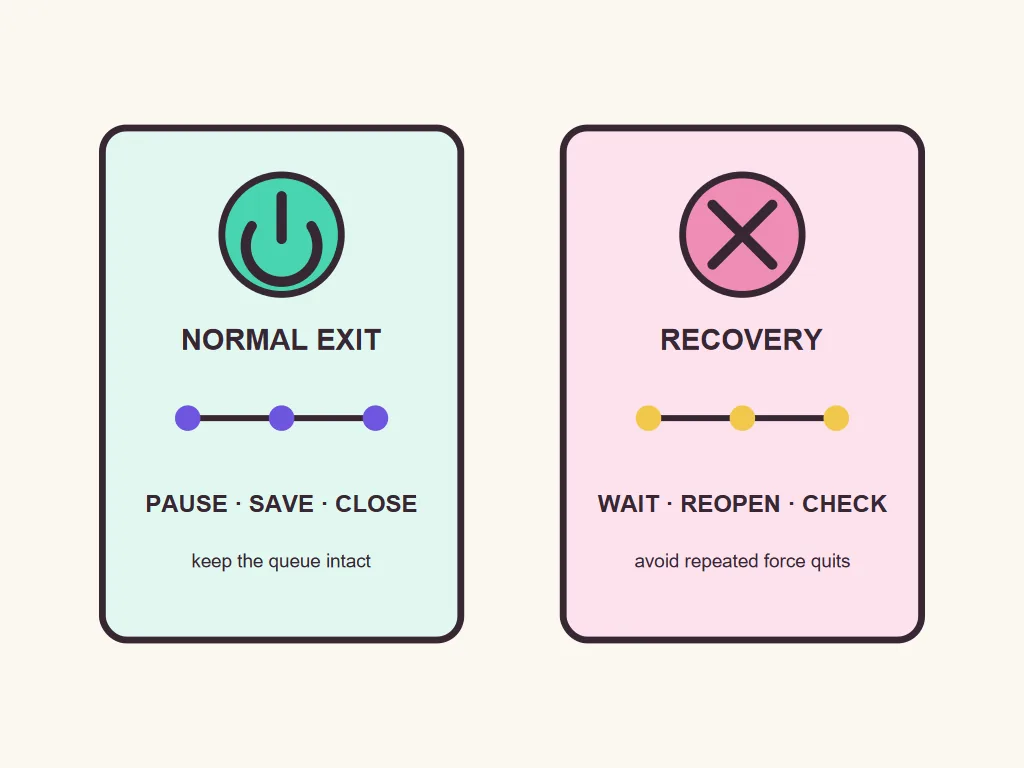
- Wait and observeAllow the client to finish a check or save operation; do not launch a second copy.
- Retry normal exit onceOnly after the interface responds, pause tasks and issue one normal Quit command.
- Use force quit only as a last resortAvoid interrupting an active disk write or disconnecting the storage device.
- Reopen and verifyLet checks finish and confirm that task entries point to the expected files.
Reopen Vuze and confirm that tasks resume correctly
A successful relaunch is a chance to verify state, not proof that every unfinished file is complete.
Let the task list load, then compare paused, queued and completed entries with your notes. A task may check files after an unclean close. Let that finish before changing its path or removing it.
If files are missing, check that the original drive is mounted at the expected path. Use Vuze's locate or recheck workflow rather than moving files while a task is active. If one task is affected, investigate it before changing global settings.
If tasks repeatedly disappear or Vuze needs force quits, back up identifiable data and record the error before more experiments. The maintained alternatives comparison can support a migration plan; it does not promise that another client imports every setting or resume record.
- Allow any startup file check to finish before you judge the task status.
- Verify drive letters or mount paths before using a locate or recheck command.
- Keep one affected task as a test rather than changing the full queue at once.
- Back up identifiable data before repeated recovery attempts.
Limits: a clean shutdown cannot repair every download problem
Normal exit reduces avoidable interruption; it does not guarantee data integrity, network availability, or modern software support.
An incomplete task remains incomplete after Vuze closes. Paused is not complete, and a zero rate does not prove a file is corrupt or safe to delete. Keep its entry and destination until you decide whether to resume, verify, move or remove it.
Power loss, a system crash, a disconnected drive or failing storage can require a file check on restart. The check may take time and can reveal a separate disk issue. Recovery depends on the task, storage and cause; no client can guarantee every interrupted file will be repaired.
Vuze is legacy software, so labels and compatibility vary by build and system. This guide describes cautious workflow, not universal support. If shutdown repeatedly fails or data is at risk, stop experimenting, protect files and plan any move to maintained software before removing old task data.
Keep a simple resume record
Write down unusual task states, confirm the destination drive, and keep a backup of important files before changing the client or storage path.
Vuze shutdown FAQ
Answers for closing, pausing and reopening a legacy Vuze session.
Should I pause Vuze before shutting down my computer?
The short answer to how to safely shut down Vuze is: pause tasks you want to resume, wait for disk activity to settle, then use its normal Exit command.
Does closing the Vuze window quit the client?
Not always. Use Exit or Quit and verify that Vuze stopped before disconnecting storage.
Will a download resume after I close Vuze?
It may resume if the task state and destination are available, but this is not guaranteed.
Is it safe to force quit Vuze when it is frozen?
Only as a last resort after waiting and checking disk activity; an unclean close can require a recheck.
Can I unplug an external drive after pausing a Vuze task?
Wait until Vuze closes and the operating system says the drive can be ejected.
Why does Vuze check files after restarting?
An unexpected close or changed path may require a piece or resume-data check. Let it finish.
Can a normal shutdown fix a Vuze download stuck at zero?
No. Check queue state, peers, metadata, destination and storage separately.
Should I delete a task before exiting Vuze?
Only if intended; some remove options also delete downloaded data. Pause tasks you want to keep.